Push Notifications:
PALS is implementing a web push notification system through the SCLS Gateway. This system requires no additional software, and libraries can enroll as many desktop and mobile devices as possible. Do not block popup windows, and ensure browser notifications are enabled to receive the notifications on the desktop. See the Troubleshooting Tips for more information.
Desktop Notifications can be enabled on any modern web browser. We recommend setting up Desktop Notifications on devices that only use one user login as multiple Windows profiles can lead to failed notification deliveries that will unsubscribe the computer from future notifications.
Mobile Notifications can be enabled on iOS or iPadOS 16.4+, and the minimum Android version is 4.4. If a device is under these versions, the notifications will not show.
The system will automatically unsubscribe any device that fails to receive two or more notifications or has not visited this page in over 270 days.
Please follow the instructions below to enable notifications on your device.
To enable Desktop Notifications:
1. Visit the PALS Notifications page on the preferred browser.
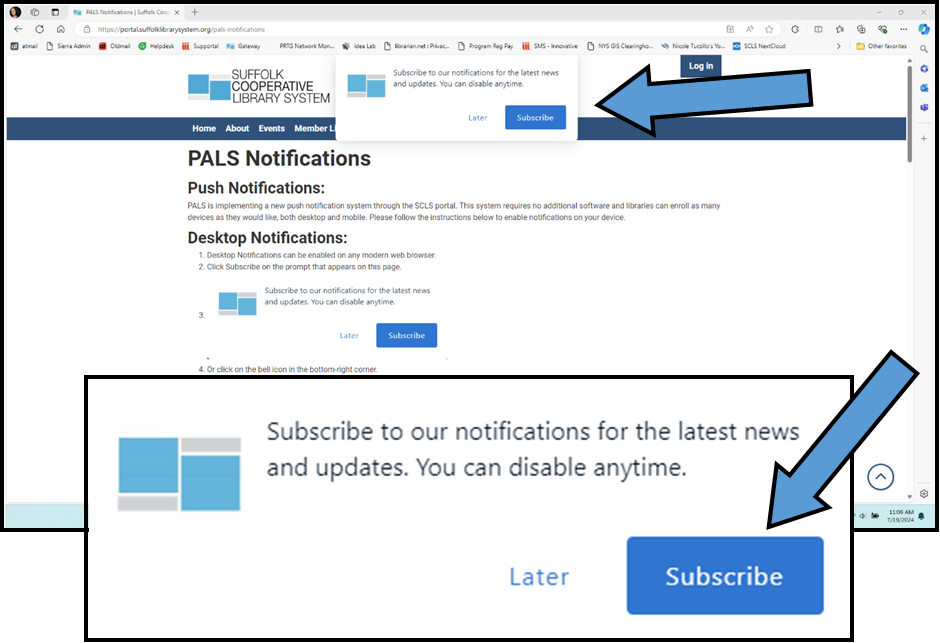
2. Click Subscribe on the prompt at the top of this page. If you do not see the prompt, disable any ad-blocker or tracker blockers for this page. See the Troubleshooting Tips for more information.
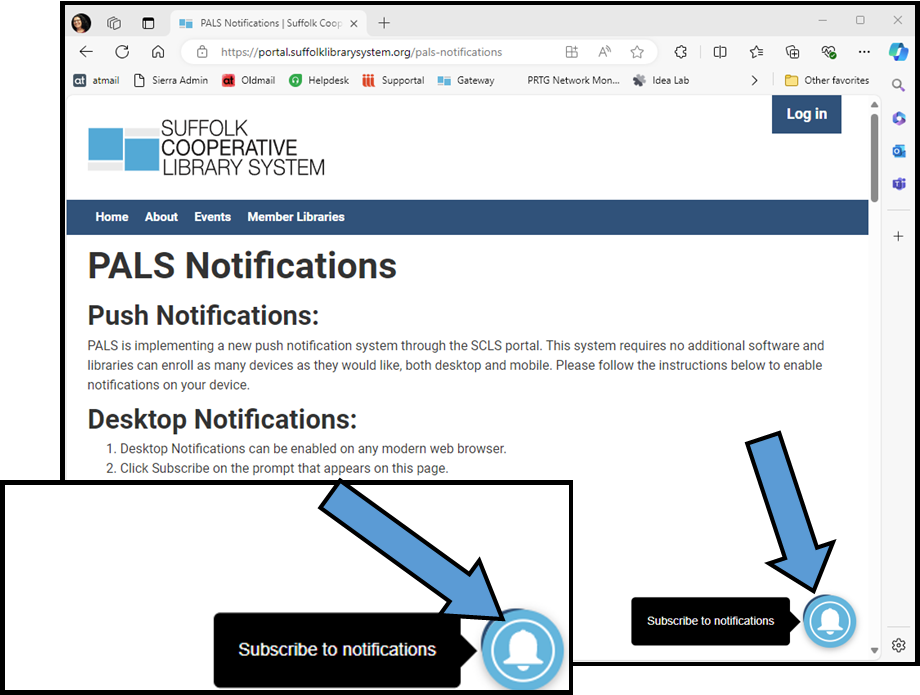
3. If you click Later on the prompt, a bell icon will appear in the bottom-right corner. Click the bell to subscribe to notifications.
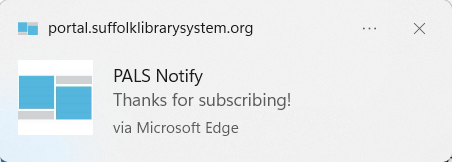
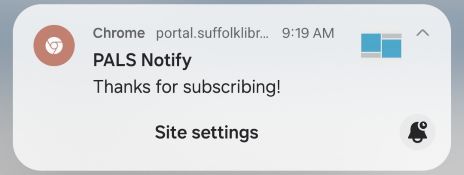
4. After you subscribe, desktop notification from PALS Notify displays, "Thanks for subscribing!"
5. If you do not see either the prompt or the icon, check that the browser's notifications are enabled in your settings. See Troubleshooting Tips for more information.
6. The notifications will only come through if the web browser is running. You may wish to use an extension like “"Chrome Background Runner” to get the notifications even if the browser window is closed.
Mobile Notifications iOS/iPadOS:
1. iOS or iPadOS 16.4+ is required.
2. Go to the PALS Notifications page on the mobile device's browser.
3. To add the web app to your Home Screen from your mobile browser, click "Share" in the browser toolbar and select "Add to Home Screen."
4. Find the app that was just added to the Home Screen, and open it.
5. Once opened, a prompt will display to subscribe. Click Subscribe, or click on the bell icon to subscribe to notifications.
6. A native push permission prompt will display, asking if you want to allow notifications. Click "Allow."
7. A notification from PALS Notify will confirm your subscription, "Thanks for Subscribing!"

Mobile Notifications Android:
1. Minimum Android version is 4.4.
2. Go to the PALS Notifications page on the browser of the mobile device.
3. Click Subscribe on the prompt or click on the bell icon to subscribe to notifications.
4. A native push permission prompt will display requesting to allow notifications. Click "Allow."
5. Once allowed, a notification from PALS Notify says, "Thanks for subscribing!"
Troubleshooting:
If you have issues getting the notifications to work on your computers, please read our Troubleshooting Tips or open a ticket in the SCLS Helpdesk.
Other ways to get notified:
Besides the push notifications, you can also stay up to date through our other sources of communication here or contact the SCLS Helpdesk here.